The Twitch bot connects your channel to Legends of Arthengard. It handles the communication between your chat and the game, and it is the basic requirement for founding your own city later on. Setting it up only takes a few minutes and only needs to be done once per channel.
Simply follow the steps below in order.
Setup Steps
1. Log In or Register
If you have not already done so, first log in to Legends of Arthengard with your Twitch account. Your account is created automatically the first time you log in via Twitch.
2. Open Settings
After logging in, open your settings. There you will find all options related to your account.
3. Request the Bot for Your Channel
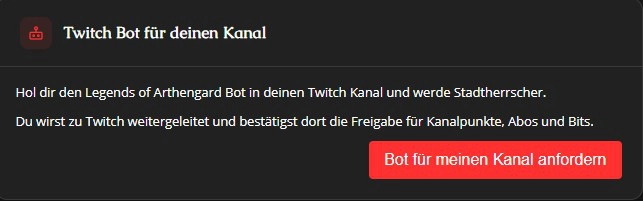
In the settings, find the "Twitch Bot for Your Channel" section and click "Request Bot for My Channel".
4. Server Capacity Check
Legends of Arthengard now automatically checks whether there is enough server capacity available for your channel. You do not need to do anything further here.
5. Grant Twitch Permissions
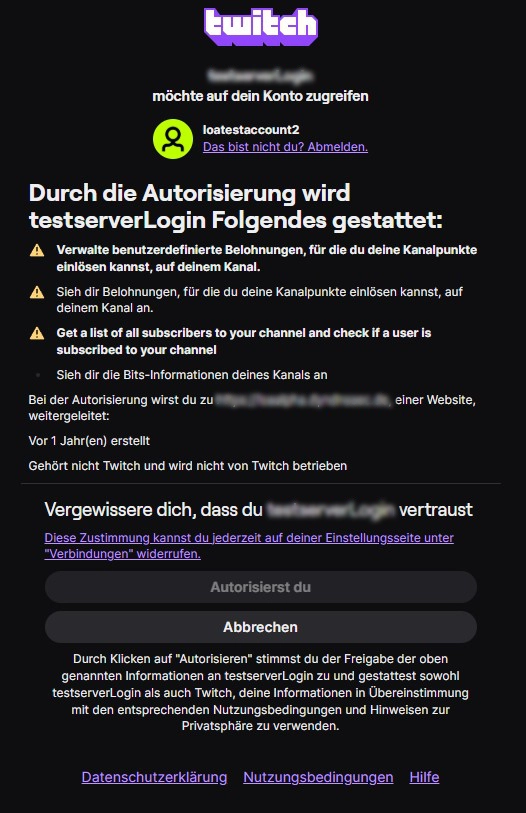
At the same time, Twitch asks for your permission to let Legends of Arthengard use certain data from your channel. The following permissions are requested:
- Subs and bits – so the stream bonus for chat jobs can be calculated correctly
- Channel point rewards – so special Legends of Arthengard channel point rewards can be processed in the game
Confirm the request to continue.
6. Verify the Setup
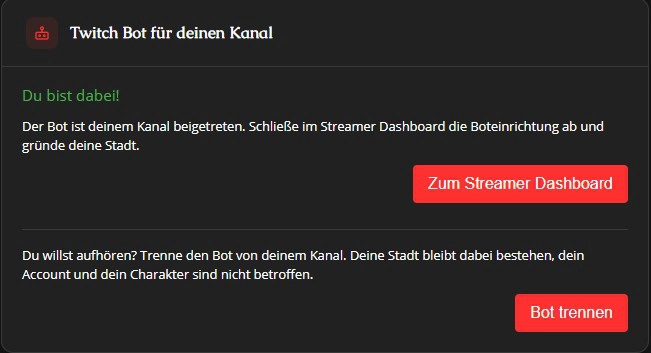
After confirming, you can see in the same spot in the settings whether the setup was successful. This lets you know right away that your bot is ready to use.
7. Streamer Dashboard Unlocked
Once the bot is set up, your Streamer Dashboard is unlocked. There you will find all further steps for founding a city as a clear tutorial that guides you step by step.
Special Cases
This also applies if you do not want to found your own city but instead want to become a Lord and join another city, or if you want to add another channel to a city you already own, for example for a 24/7 channel or a joint project run by several streamers: that channel also needs to go through the steps above and set up the bot. Afterwards, however, do not use #joincity in that Twitch chat under any circumstances, as this would automatically found a new city of its own. Instead, read the wiki article Setting Up Subchannels to correctly link the channel to the existing city.