Subchannels let you add another Twitch channel to an existing city. This is useful, for example, for a 24/7 channel, another channel of your own, or a joint project run by several streamers.
For a joint project, you need to decide beforehand who runs the main channel. The main channel determines which Twitch channel the city is permanently linked to. All other channels become subchannels and can also help rule the city as a Lord.
Important Prerequisite
Subchannels must not have founded their own city beforehand. If this happens anyway, the affected city becomes orphaned because no one can enter it anymore. Make sure that all channels that are meant to join as a subchannel do not yet own a city.
In addition, both the main channel and every subchannel must already have the Twitch bot set up, as described in the wiki article Setting Up the Bot.
Setup Process

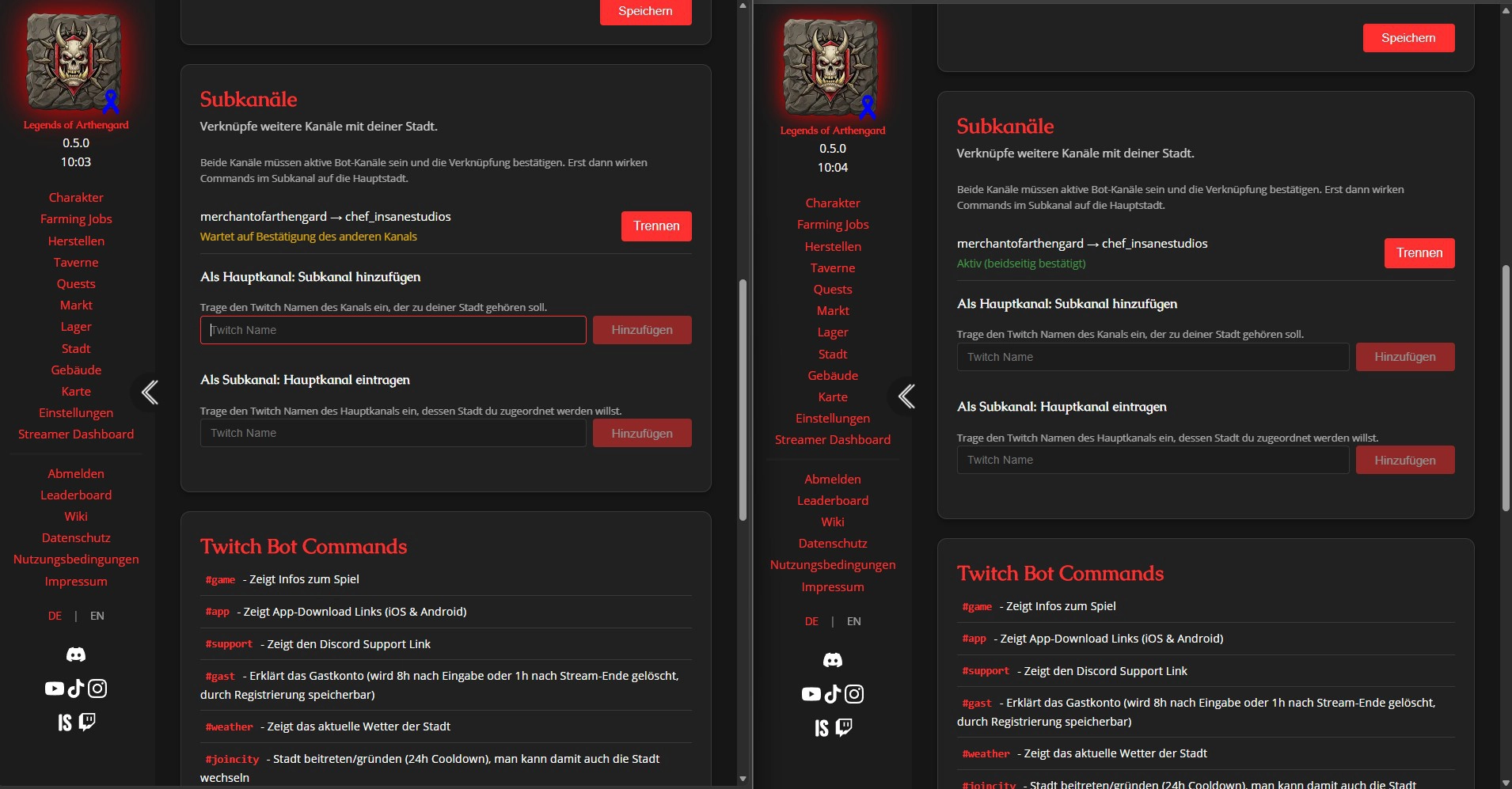
Linking two channels requires action from both sides, the main channel (left) and the subchannel (right). The connection is only established once both sides have declared the shared rule.
Step 1: The Main Channel Adds the Subchannels
The main channel opens its Streamer Dashboard and goes to Bot Settings → Subchannels. Under "As main channel: add subchannel", it enters all Twitch names that should act as additional Lords in the city.
Step 2: The Subchannels Enter the Main Channel
In return, every account that wants to help rule as a Lord in addition to the main channel must enter the main channel's Twitch name in the same place under "As subchannel: enter main channel".
Step 3: Wait for Confirmation
Once both sides have declared the shared rule, a message appears confirming that the channels were successfully linked.
Becoming a Lord of the City
After linking, every subchannel needs to enter the city through their own channel in order to also become a Lord of the city.
If you have already entered the city through the main channel, you can additionally claim the Lord rank in your own channel using the command #roleup.